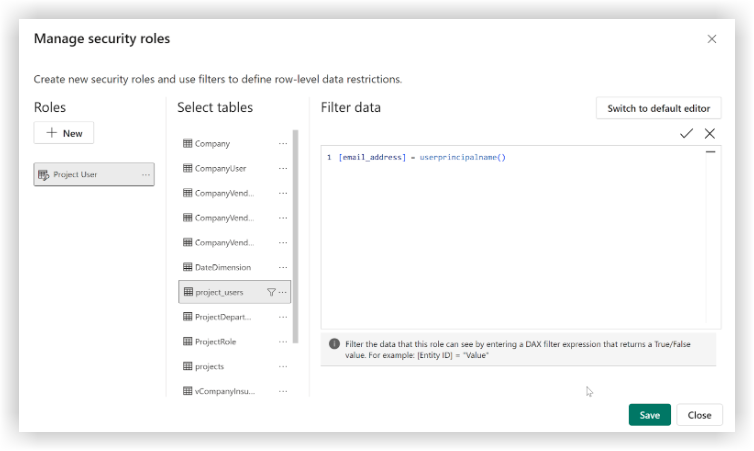
Set Up Row-Level Security for Analytics 2.0
Background
If a user's Procore login credentials are the same as their Power BI login credentials, row-level security (RLS) filters can be set up in Power BI Desktop to limit a user's access in the Power BI service to data only from Procore projects they have been added to. For more information, see Microsoft's Row-level security (RLS) with Power BI .
Things to Consider
Required User Permissions:
Your login information for Power BI and Procore must use the same email address.
You must be assigned the 'Viewer' role in the Power BI workspace.
If using the Procore OOTB Reports, the 'project_users' table will be 'ProjectUser'.
Steps
Configure 'projects' and 'project_users' Power BI Relationship
Configuring a Power BI relationship between the projects and project_users tables connects the data from these tables. See Microsoft's Create and manage relationships in Power BI Desktop . Two options for configuring this relationship are outlined below.
Option 1
Open an Analytics report in Power BI Desktop.
On the Home tab, click Manage Relationships.
In the 'Manage relationships' window, scroll through the options and select project_users (project_id) and click Edit.
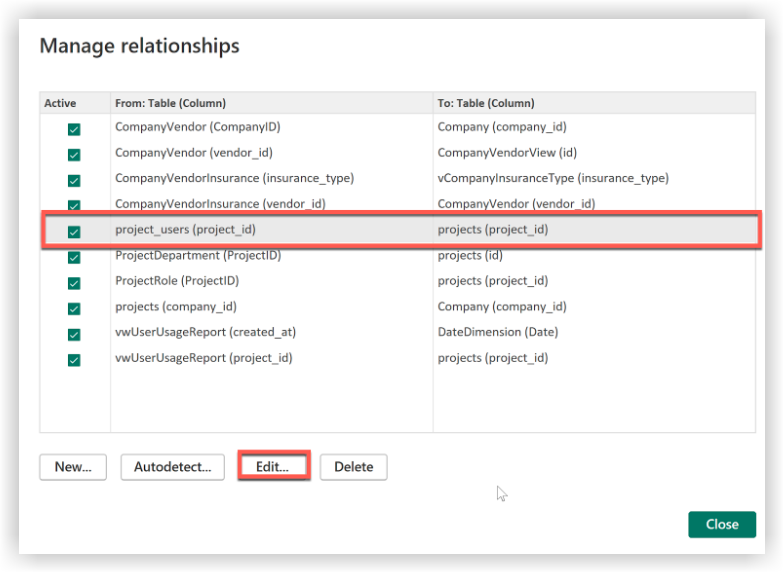
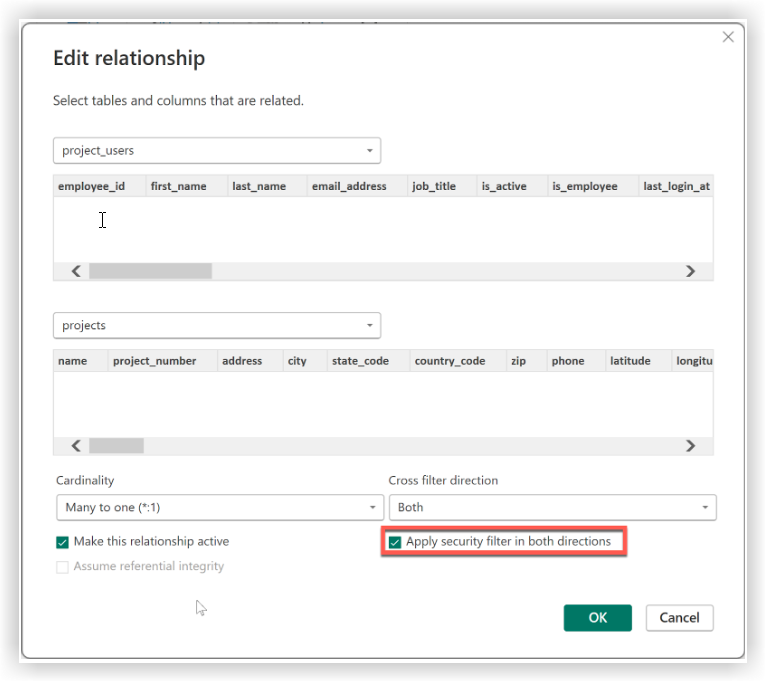
Complete the following in the 'Edit relationship' window:
Under 'Cardinality', select Many to one (*:1) and mark the 'Make this relationship active' checkbox. These options should be selected by default.
Under 'Cross filter direction', select Both and mark the 'Apply security filter in both directions' checkbox.
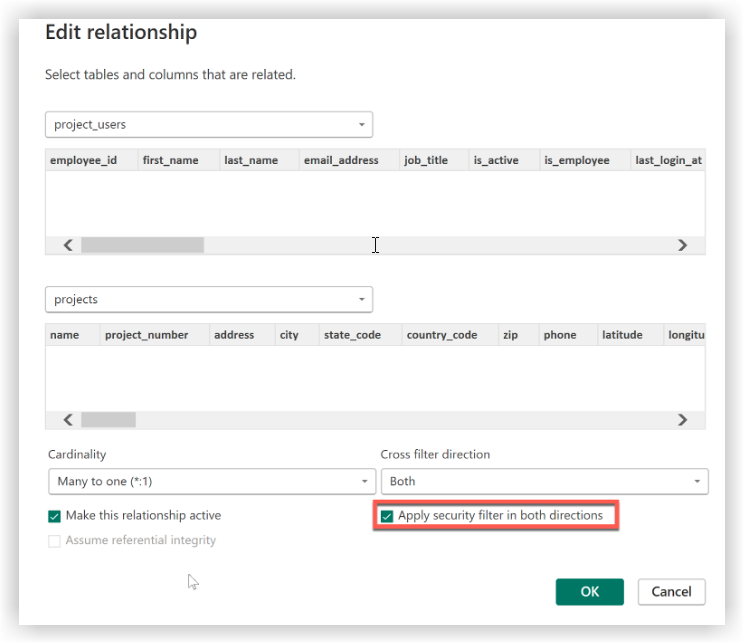
Click OK to close the 'Edit relationship' window.
Click Close to close the 'Manage relationships' window.
Save the report.
Option 2
Open an Analytics report in Power BI Desktop.
Click the Model view.
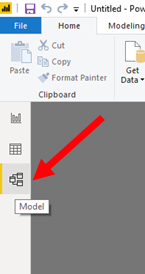
Check the relationship between the 'projects' and 'project_users' tables. The relationship should have a (1) next to the 'projects' table and an asterisk (*) next to the 'project_users' table.
Tip
To only view the relationship betweeen the 'projects' and 'project_users' tables (as shown below), click the plus icon (+) next to the 'All tables' tab to create a new layout and add the 'Project' and 'ProjectUser' tables to the layout by dragging and dropping them from the Properties > Fields menu into the gray space.
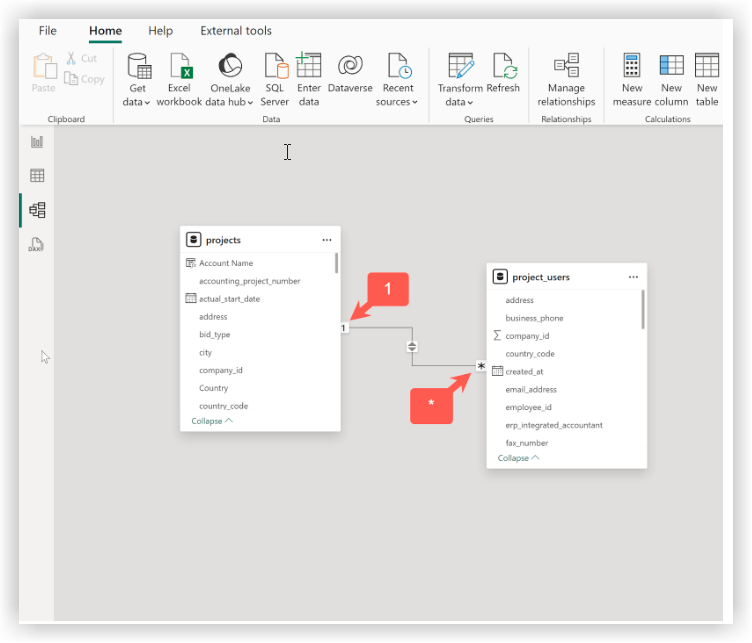
Select the relationship by double-clicking on the connecting line between them.
Complete the following in the 'Edit relationship' window:
Under 'Cardinality', select Many to one (*:1) and mark the 'Make this relationship active' checkbox. These options should be selected by default.
Under 'Cross filter direction', select Both and mark the 'Apply security filter in both directions' checkbox.
Click OK to close the 'Edit relationship' window.
Save the report.