Update Procore Analytics Reports for the Line Items (JSON) Column
Background
Effective February 17, 2026, access to the budget_snapshot_line_items table will be discontinued as the table is officially deprecated (sunset) on this date. Its data has been moved into the budget_snapshot_line_item_headers table as a single JSON column named line_items.
Some Procore Analytics reports, such as “Procore Financials Budget 2.0” and “Procore Financials Budget 2.0 (Custom)”, are already updated. However, if you have other reports that used the old table, you must update them to use this new JSON column.
Prerequisites
Make sure that your Procore Analytics reports in the Power BI service are updated to the latest versions.
Things to Consider
Steps
Open your Procore Analytics report in Power BI Desktop.
On the Home ribbon, click Transform Data to open the Power Query Editor.
In the Queries pane, select the budget_snapshot_line_item_headers query.
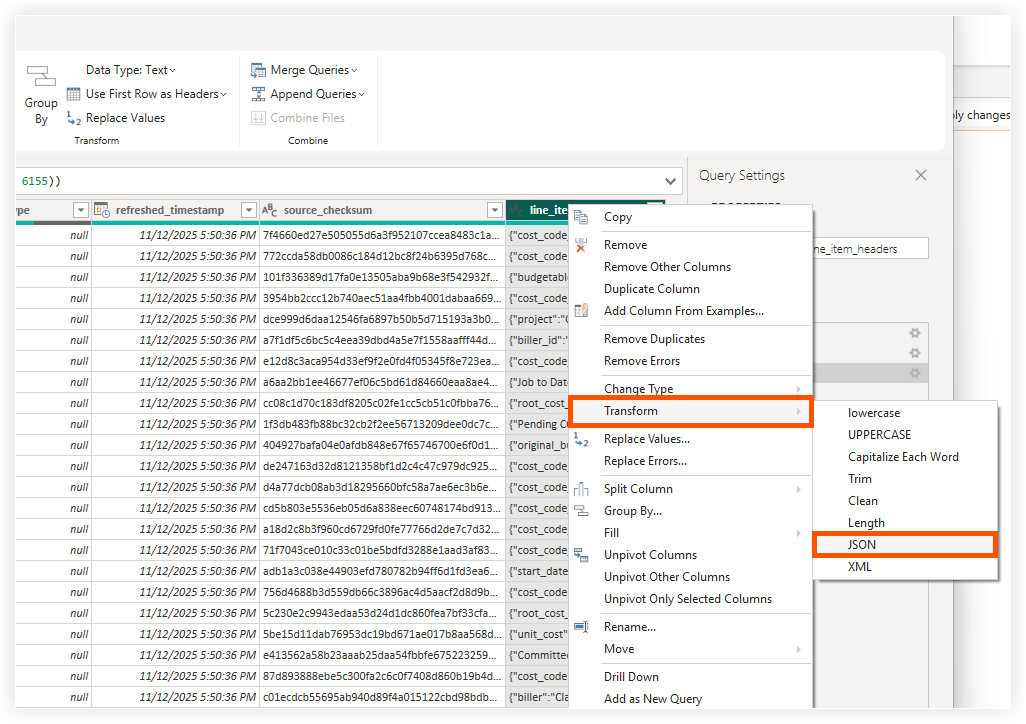
Find and right-click the header of the line_items column.
Click Transform and then select JSON.
Click the icon next to line_items.
A dialog box will appear, listing all the available options inside the JSON column.Select the columns you want to expand.
Note
Unmark the Use original column name as prefix checkbox to use the column name in JSON. For example, Committed Costs.
By default, the column names are prefixed with "line_items.". For example, line_items.Committed Costs.
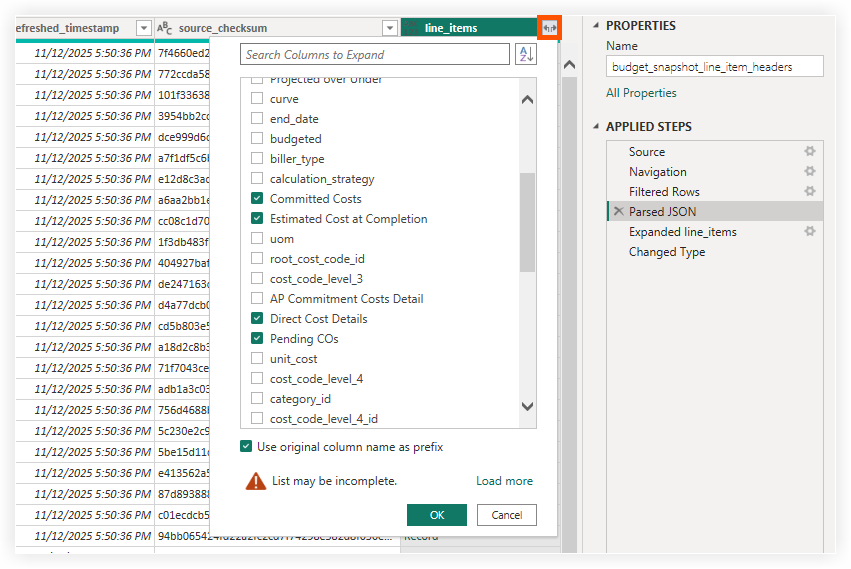
Click OK.
The line_items (JSON) column will be replaced with all the individual columns you selected.
You must specify the data types for the new columns. Select all the new columns (use Ctrl+Click or Shift+Click).
Right-click one of the selected column headers, choose Change Type, and select Decimal Number (or the most appropriate type for your financial data). 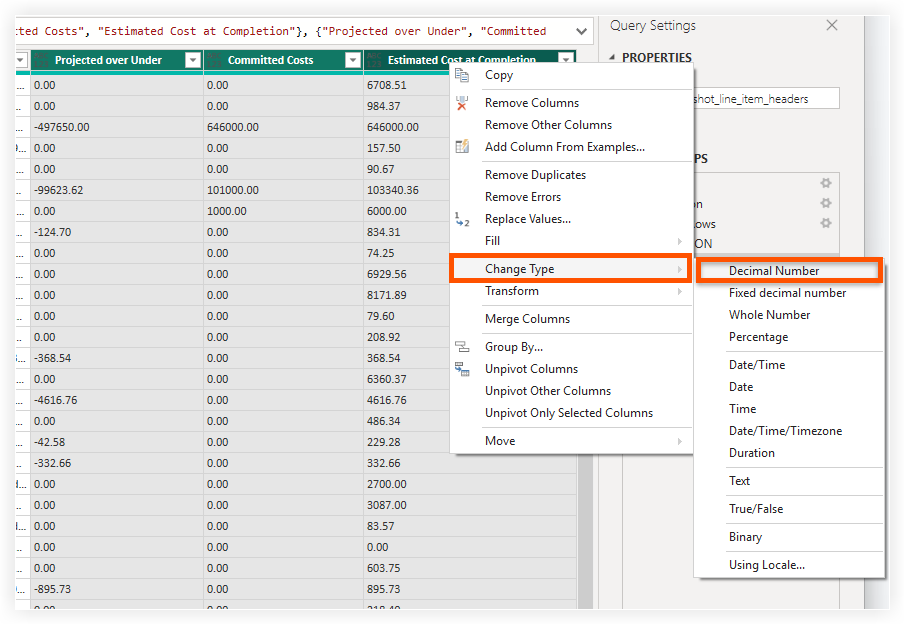
On the Home tab, click Close & Apply.
Update the visuals, measures, and calculated columns in your report with the new columns.