Forward a Correspondence Item by Email
Background
The email functionality on the Correspondence tool allows you to send an email outside of the emails that are automatically generated such as when a correspondence item is created. See Who receives correspondence item emails and push notifications to learn more about automatic correspondence emails.
Things to Consider
Required User Permissions:
'Standard' level permissions or higher on the item's correspondence type.
Additional Information:
If a person is missing from the recipient selection list, add them to the Project level Directory with 'Read Only' or higher level permissions for the correspondence type to email/forward it . If you don't have permission to add users to the Project Directory, ask a member of your team who is responsible for Directory management to add them.
Note: The newly added user does NOT have to accept the invitation to join the project before they can be selected from the recipient list.
Steps
Navigate to the project's Correspondence tool.
Click the Number or Subject link for the correspondence item you want to include in your email.
Click the Emails tab.
Click Compose Email.
Under the 'Compose New Email' area, complete the following fields:
Private. Decide if you'd like to select or clear the Private checkbox in the upper corner.
Emails marked Private are only visible to the email's recipients and Admin, while in the Procore application.
Emails not marked Private are visible in the Emails tab to anyone with permissions to view the correspondence item in Procore.
To. Choose one or more users or distribution groups to receive the email.
Cc. You can choose users or distribution groups to receive copies of the email.
Bcc. You can choose users or distribution groups to receive a 'blind carbon copy' of the email. These people will receive copies of the email, but others cannot see that they've received it.
Subject. This field is auto-filled using the title of the correspondence item you selected above. You can edit the text if you prefer a different title.
Message: Enter text into the body of your email message.
Note: Information about the correspondence item you're forwarding is included in the body of the email under your message, as shown below in the Details and Responses sections of the image.Attach Files. Click Attach Files and find the files you'd like to attach to the email. Then click Attach.
Click Send.
A copy of the email and any replies are stored as a communication thread in the Emails tab of the submittal.
Each email uses a unique email address, such as procore-1234abcd1234abcd1234abcd@procoretech.com
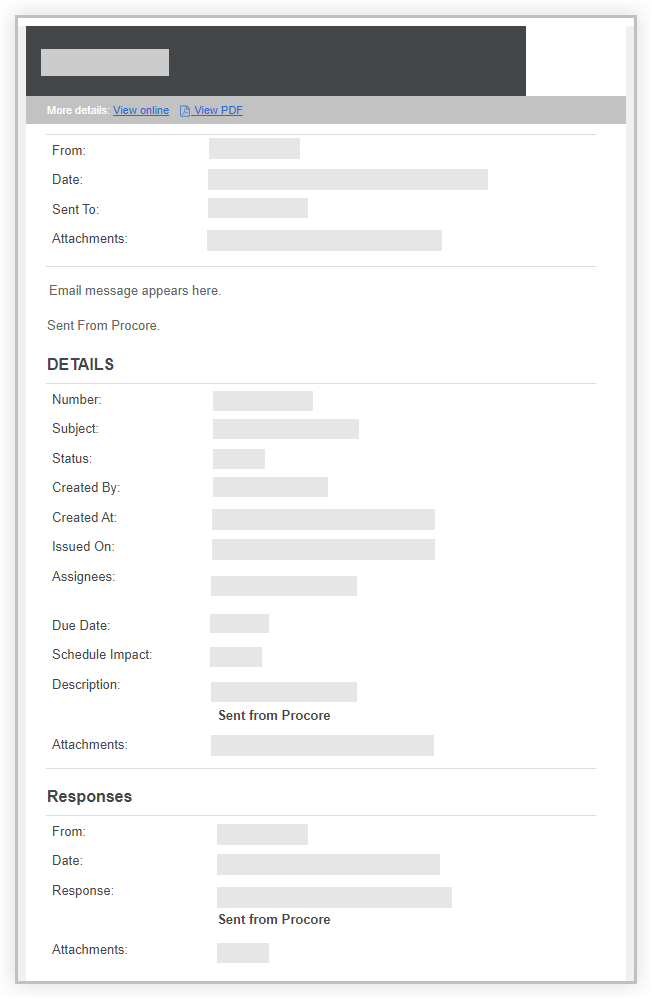
Example Email - Exact fields depend on project, tool, and item settings
See Also
Loading related articles...