Add Worker and Employee Entries on a T&M Ticket
Background
Use the 'Labor' section of a T&M ticket to log who is performing the work. If a worker is missing from the 'Employee' list, you can create a new worker (contact) or add one from a previous project. Workers are also accessible in the Crews and Timesheets tool, and are added as a contact in both the Project Directory and Company Directory.
Things to Consider
Workers must be unique.
Workers are added to the 'Contacts' tab in the Project and Company level Directory tools.
Steps
Navigate to the project's T&M Tickets tool.
Create New or Add to Existing T&M Ticket.
Create a New T&M Ticket
Click Create to add labor to a new T&M Ticket.
Add to an Existing T&M Ticket
Click Edit next to the T&M Ticket you want to add labor to.
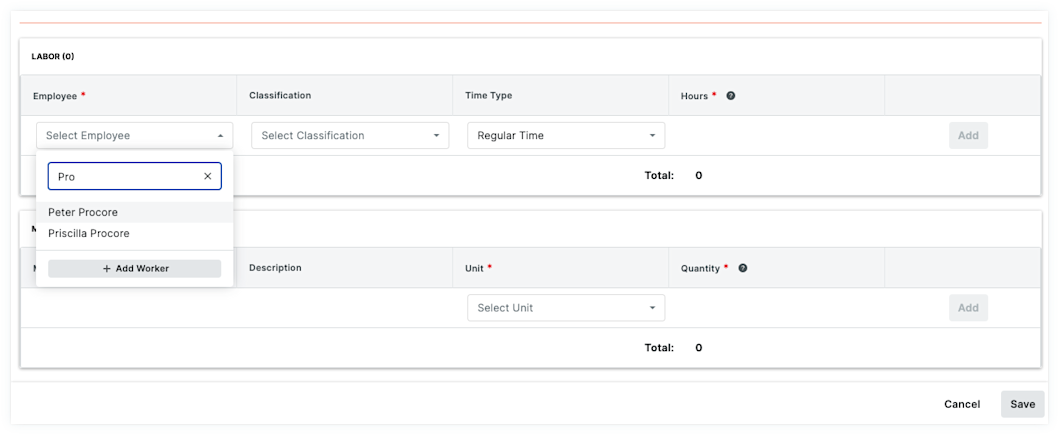
In the 'Labor' section, click the Employee drop-down list, then select or add a worker:
Click an existing user or contact.
Click Add Worker.
Enter the worker's First Name.
Enter the worker's Last Name.
Enter the worker's Employee ID.
Enter the worker's Classification.
Click Add.
Select the Time Type.
Enter the number of hours the person worked.
Click Add to complete the equipment item entry.
Click Update to update the T&M Ticket.
See Also
Loading related articles...