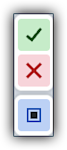
How can I tell which tool is active in the Model Manager's right toolbar?

Procore Model Manager - Beta Access & Feedback

The Model Manager (Beta) tool is exclusively available to registered beta participants. It is not available through Procore Explore. To learn more, see Beta Participant Guide.

  • To access the beta and provide feedback Show/Hide Details

    • To register: Participating companies must sign the Procore Beta Agreement. Once signed, your Procore Administrator coordinates with your Procore point of contact to enable Model Manager (Beta) on specific Procore projects.

    • To Provide Feedback During Beta: Contact your dedicated Beta program lead.

    • To report issues: Report breaking changes to Procore Customer Support. For general feedback or non-critical issues, contact your Beta program lead or Procore point of contact.

  • Notice: Procore Beta Services & Documentation Show/Hide Details

    For information about Beta Services, see the Procore Subscription Services Agreement. This documentation supports a product currently in Beta; content is actively being developed for General Availability (GA) and may be incomplete.

    • As-Is Basis: Provided solely for evaluation purposes on an "as is" basis.

    • No Warranties: Standard contractual commitments do not apply. This information carries no formal product commitments, and Procore assumes no liability for harm arising from its use.

    • Subject to Change: Procore may change, discontinue, or choose not to generally release these Beta Services at any time without notice.

When interacting with the Next-Gen Viewer in the project's Model Manager (Beta) tool, the right toolbar provides specific tools to manipulate and analyze your model. Knowing how to identify an active tool in this toolbar ensures you can manage your work and navigate the viewer efficiently.

Answer

You can tell a tool in the right toolbar is active when its icon turns blue.

This image shows how the buttons in the right toolbar appears when a tool is active. The checkmark appears at the top, the X appears below it, and the active tool displays below the X.

To exit the active tool, choose one of the following options:

  • To save your changes and exit the tool, click the green checkmark.

  • To quit and exit the tool without saving changes, click the red X.

See Also

Loading related articles...