Add Company Cost Types

Background

The 'Cost Type' segment is one of the default segments in Procore's . It is a flat segment that is typically is used to perform . In WBS, a segment is a discrete category that an organization uses to break down its work into manageable components. A segment item is one of many distinct items in a segment. After creating a segment, you can add an unlimited number of segment items to it. To learn more, see What are segments and segment items?

Example

Procore's 'Cost Type' segment includes the following segment items. See What are Procore's default cost types? Other segment items to add to your 'Cost Type' segment might include Direct Labor (DL), Direct Materials (DM), and Overhead (OH):
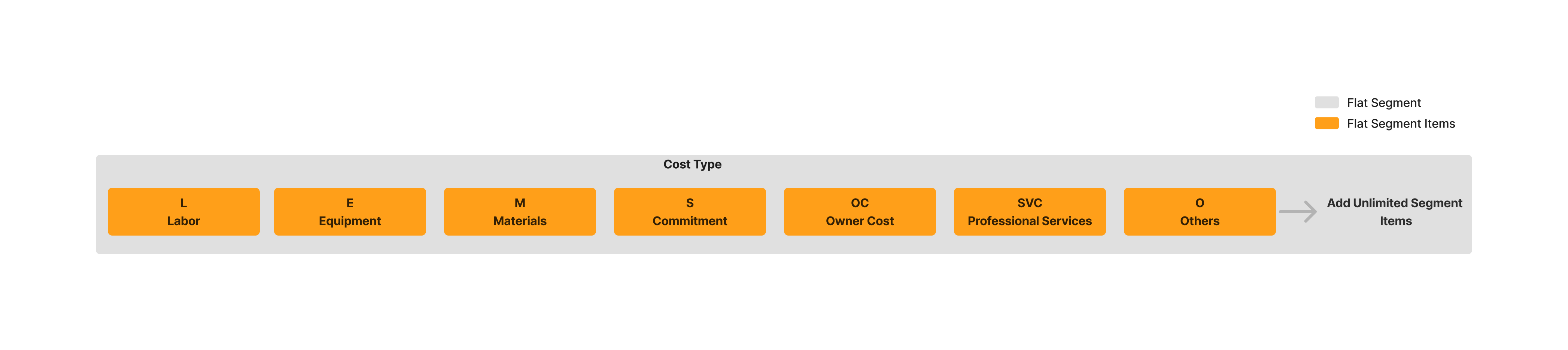

Diagram Wbs Flat Segment

Things to Consider

  • Required User Permissions:

    • 'Admin' level permissions on the Company level Admin tool.

  • Additional Information:

    • 'Code' and 'Description' are required fields and cannot be empty.

    • Duplicate entries in the 'Code' field are NOT permitted. Entries in the 'Code' field for each segment item must be unique.

    • There are no character limits on entries in the 'Description' field.

    • There is no limit on the number of segment items you can add.

    • Your Company level 'Cost Type' segment items cannot be edited or deleted at the project level.

  • Limitations:

    • For customers using the Company level ERP Integrations tool
      The default segments in WBS are compatible with Procore's ERP Integrations tool. However, some integrations do NOT yet support custom segments.

    • For customers who have independently developed or purchased a third-party solution to integrate with Procore
      To take advantage of the custom segment capabilities associated with WBS, any existing API integrations that you have independently developed or purchased to interact with Procore must be updated to support Procore's new WBS API.

Prerequisites

Steps

In Beta

Company Administrators can enable the UOM & WBS: Assign Units of Measure to Budget Codes and Lock on Line Items beta in Procore Explore.

  1. Navigate to the Company level Admin tool.

  2. Under 'Company Settings', click Work Breakdown Structure.

  3. In the 'Segments' table, click Cost Type.

  4. Click Add Items.

  5. In the 'Cost Type' table, configure the following:
    Note: An asterisk (*) below denotes a required field.

    • Code*. Enter a unique alphanumeric code for the cost type. For example, enter 'L'.
      Note: Duplicate entries are not permitted.

    • Description*. Enter a description of the cost type. For example, enter 'Labor'.

       Note

      The 'Code' and 'Description' fields are required. Duplicate entries are NOT permitted in the 'Code' field. If you attempt to leave a field blank or add a duplicate, Procore displays a RED banner to notify you of the issue.Wbs Cost Type Duplicate Empty Notice

    • Beta Feature Company UOM Assignment. Select a default unit of measure (UOM) for the cost type from the drop-down list. See Which units of measure are included in Procore's master list? and Add a Unit of Measure on the Unit of Measure Master List.

      Note

      Standard Behavior (Without restrictions)

      • When UOM editing restrictions are disabled (Company or Project):

        • This UOM is automatically assigned to budget codes created with this cost type and can be changed on individual budget codes. Financial line items use the budget code’s UOM.

      Restricted Behavior

      • When UOM editing restrictions are enabled (Company or Project):

        • This UOM is automatically populated and cannot be edited when users create a budget code with this cost type, or when they add line items using any budget code associated with that cost type in financial tools across all projects.

      Wbs Add Segment Button