Enable Templates on Projects
Update General Information
Under the General Information section, enter the relevant project details to ensure they automatically populate on lien waivers generated for this project:

Property Owner. Enter the property owner name to display on first-tier and sub-tier lien waivers for this project. Note: This required field becomes active when conditional or unconditional lien waivers are enabled.
Lender. (Optional) Enter the lender company name to include on lien waivers for this project.
Project Legal Property Description. (Optional) Enter the legal property description to include on lien waivers for this project.
Enable Lien Waivers
Navigate to the Project level Invoicing tool.
Click the Settings
 icon. This opens the Invoicing tool's Settings page.
Click the Lien Waivers tab. Then choose from these options:
TipsDon't see any options? The lien waiver settings must be enabled for Procore Pay. See Enable Lien Waivers in the Company Payments Tool. See The project must have a 'State' selected in the Project level Admin tool on the General tab in the Project Location section.
What do the different lien waiver types mean? To learn about the types, see What types of lien waiver templates can you create?
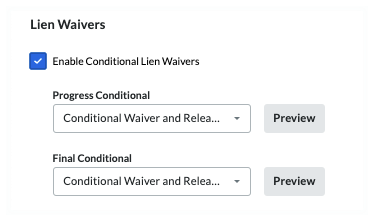
Enable Conditional Lien Waivers. Mark this checkbox to enable the use of any conditional lien waiver templates created for use by your company. Clear the checkbox to disable the use of those templates. When you mark the checkbox, you also have the option to set the default template for the project:
 Tip
TipWhy am I seeing a 'No template' message? If the 'No template' message appears, create a lien waiver template for the waiver type. See Create Lien Waiver Templates. To appear in this list, the 'State' defined for the template must match the Procore project's Project Location information.
How do I know if a lien waiver is compliant with State requirements? For states that mandate the use of a specific lien waiver form, Procore Pay's Levelset integration provides lien waiver templates that comply with state requirements. Best practices templates are available on the Levelset website. See Lien Waiver Release Forms - State by State . Your company must ensure that your lien waiver templates comply with all applicable laws and regulations. If you have questions, consult a legal advisor.
Why can't I select a template from the drop-down list? If the drop-down list is grayed out, that type of lien waiver is not available in the project's state, according to Levelset's lien waiver database.

