Create Multiple Action Plans by Asset

Background

 In Beta

Company Administrators can enable this beta in Procore Explore.

When working with multiple identical units or equipment sets (such as HVAC units or electrical panels), you can automatically generate individual action plans for each asset in a single operation using an action plan template. Each generated plan links directly to its corresponding asset record and appears in the asset's Related Items tab.
Things to Consider

  • Required User Permissions

  • Additional Information

    • Template Requirement: Bulk plan creation requires an existing project-level or company-level Action Plan template.

    • Fieldset Configuration: The selected template’s field set must have the Assets field enabled by a Company Admin in Company Level Action Plan Settings.

    • Automatic Title Appending: Procore appends the Asset Name to each newly generated Action Plan title to keep records distinct.

Prerequisites

  • Enable the Assets tool on the project and create the necessary asset records.

  • Ensure at least one project-level or company-level Action Plan template is available.

  • Ensure the Assets field is enabled on the template's assigned field set.

Steps

  1. Navigate to the project's Action Plans tool.

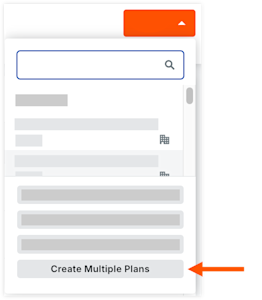
  2. Click Create, then select Create Multiple Plans.

  3. Select an Action Plan template from the Template drop-down menu.

  4. On the selector toggle, select Assets.

  5. Click the Assets field and select all desired assets from the drop-down menu.

  6. Confirm the selection count in the Total Plans to be Created counter.

  7. Click Create.

    • Note: Procore will batch-generate an individual action plan for each selected asset. You will receive an email notification upon completion.

See Also

Loading related articles...