Import a Budget
Background
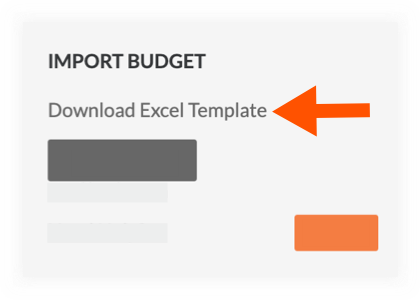
When setting up your budget in a new Procore project, you have the option to add the line items manually (see Add a Budget Line Item) or use the steps below to import your data.
Things to Consider
Required User Permissions:
'Admin' level permissions on the project's Budget tool.
OR'Read Only' or 'Standard' level permissions on the project's Budget tool with the 'Import Budget From File' and 'Create and Edit Original Budget Amount' granular permissions enabled on your permissions template.
Notes
If a user with 'Read Only' or 'Standard' permissions has only the 'Import Budget From File' granular permission enabled, they can only import a budget. They cannot manually create or edit the budget.
If a user with 'Read Only' or 'Standard' permissions have only the 'Create and Edit Original Budget Amount' granular permission enabled, they can only manually create or edit a budget. They cannot import a budget.
Supported Import File Type:
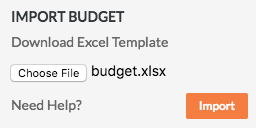
XLSX
Additional Information:
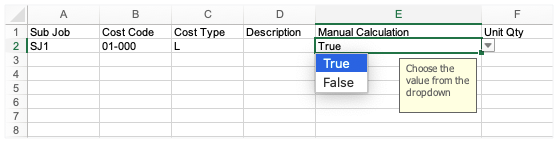
To create new line items, the import file must contain data in the following columns:* Cost Code* Cost Type* Manual Calculation
To import multiple line items with the same cost code, each item MUST have a different cost type assignment. For example:
02-300 - Earthwork, M, $30,000
02-300 - Earthwork, L, $10,500
Do NOT edit, update, or change data in the 'Importer Data Fields' worksheet of the import template. This worksheet is for reference only and shows the options are available for selection in the drop-down lists on the 'Budget Line Items' tab. These options reflect what options were available for selection on your Procore project at the time you downloaded the import template.
Limitations:
Exported Procore Budget files are NOT supported. CSV and PDF export files contain additional data columns and cannot be used to re-import a budget.
Budget Codes
The import template does NOT contain a 'Budget Code' column. Instead, Procore automatically create budget codes on your project when you enter the
,A Cost Code identifies a specific type of work on a project to track its associated expenses, such as labor, materials, and equipment.
, andA Cost Type is a set of costs identified by a unique abbreviation or label. Cost types are typically used in job costing (tracking costs for certain job activities and projects). In Procore's Work Breakdown Structure, 'Cost Type' is a flat segment with these default options: (E) Equipment, (L) Labor, (M) Materials, (O) Other, (OC) Owner Cost, (S) Commitments, and (SVC) Professional Services.
(if enabled) combination on your line items in the import template.In Procore, a sub job allows you to compartmentalize job costs within a project. Once they are added to Procore (or imported via an
) you can monitor your project budgets and costs against them to help you better determine if you are making money on your project. For example, if your project is a multi-story commercial building, you might create a separate sub job for the build of each floor. Or, if your project is a multi-unit development, you might create a separate sub job for each individual structure.In Procore, the term integrated ERP System, is used to refer to Enterprise Resource Planning (ERP) software applications that can be configured to exchange data between Procore and a supported application using the Company level ERP Integrations tool. See Which ERP integrations are supported by Procore?
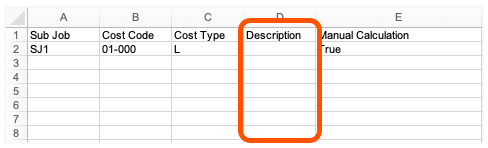
In order to import data into Procore, the database requires the presence of a 'Description' column in the import template. You can leave this field blank to use the default concatenated description in your company's Work Breakdown Structure or you can input a description to import a custom description.
The maximum number of line items allowed for an individual budget import is 500.
Tip
To avoid overwriting the values in a project's budget, Procore recommends importing your budget once. If you want to import a new version of your budget, you may. However, it's important to keep these points in mind:
Any line items added to your original import will be added.
All changes to the 'Budget Amount' values on existing line items are overwritten.
If you want to preserve 'Budget Amount' values, make sure the values in the updated import file match the original import file before importing it into Procore.
For assistance with an import, email: support@procore.com