Copy a Saved View Link in Capital Planning
Background
Copy a saved view link in Procore to share customized table layouts and data filters directly with colleagues in your organization. Sharing a direct link eliminates the need for team members to manually replicate complex column configurations and filter criteria.
Things to Consider
Required User Permissions:
'Admin' level permissions to create 'Company Views'.
'Standard' level permissions or higher to create 'Personal Views'.
Additional Information:
Recipient users must have an active user account in the same Procore company and project with appropriate tool permissions to access the shared view link.
Sending the copied URL allows recipients to open the exact filter and column arrangement saved to that view.
Steps
Navigate to the company's Capital Planning tool.
Click the
 Views button.
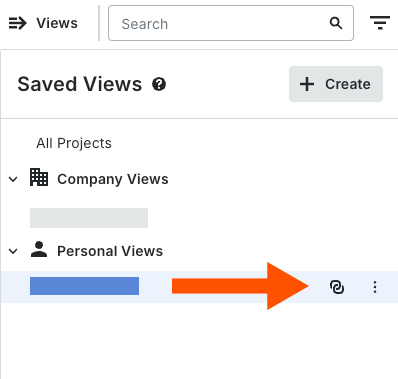
Select the relevant Saved View.
Click the Copy
 icon.
A green successful banner will appear saying "Share link copied to clipboard"
Paste the copied link into an email, message, or document to share it with team members in your Procore account.

See Also
Loading related articles...