Remove Saved View as Default View in Capital Planning
Background
Remove a saved view as the default view in Capital Planning to restore the standard system layout when accessing the tool. Clearing a designated default view prevents automated layout overrides and returns the portfolio table to its baseline state.
Things to Consider
Required User Permissions:
'Admin' level permissions to delete 'Company Views'.
'Standard' level permissions or higher to delete 'Personal Views'.
Additional Information:
Removing a default view affects only your personal user account session.
Removing a saved view from default status does not delete the saved view from the tool.
You can assign another personal or company view as your default view at any time.
Steps
Navigate to the company's Capital Planning tool.
Click the
 Views button.
Select the Saved View you want to update.
Click the vertical ellipsis
 icon next to the relevant saved view.
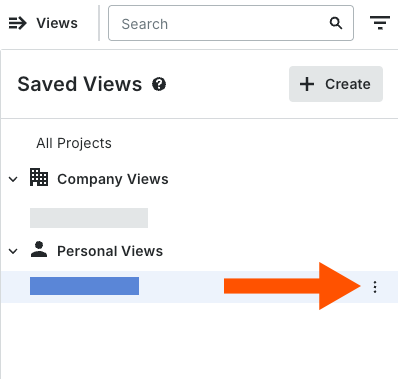
Select Remove as Default View.

See Also
Loading related articles...