Move Coordination Issues to Observations
Some design issues must be resolved on-site. Instead of closing an issue and risking losing track of it, use the Move to Observation feature to seamlessly hand it off to field teams. This function formally transfers the item—either individually or in bulk—by closing the coordination issue and creating a linked file in the Observations tool. By connecting office and field teams, this workflow ensures every issue is tracked to resolution, maintaining a clear record for model sign-off.
Things to Consider
Additional Information:
Users can only move issues in the Open or Released status.
Users can also bulk-edit the Type, Description, Assignee, Private (checkbox), and Attachments fields. To learn more, see Bulk Edit Coordination Issues.
Procore automatically copies the Title, Location, and Trade entries for each issue to the new observation.
Procore links new observations to each issue's General tab.
Steps
Move Issues in Bulk
Navigate to the project's Coordination Issues tool in Procore.
In the table on the All Issues tab, select the checkboxes for the coordination issue(s) to move.
This opens a Bulk Edit side panel.From the Status drop-down list, select Move to Observation. To learn about the fields you can bulk edit, see Bulk Edit Coordination Issues.
Click Update to save your changes. Procore creates a linked observation and updates the issue's status to 'Moved to Observation.'
Move a Single Issue
Navigate to the project's Coordination Issues tool in Procore.
Click the Issue link to view its details in the side panel.
Click the
 icon to open the More Options menu and choose Move to Observation.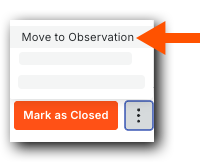
Complete the fields for the observation. See Create an Observation.
Click Create. Procore creates a linked observation and updates the issue's status to 'Moved to Observation.'

See Also
Loading related articles...