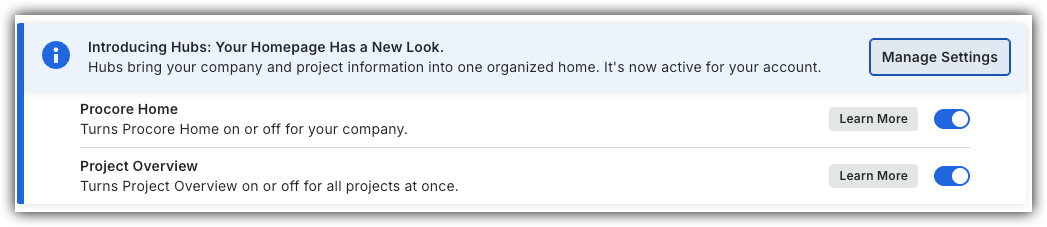
To return to the legacy Project Home, Company Administrators can navigate to the Company Portfolio / ProcoreHome tool, click Manage Settings and toggle Project OverviewOFF.
However, later this year it will be sunset and will no longer be available. If your company reverted to the legacy Project Home experience, Company Administrators can re-enable the Project Overview by switching Project Overview toggle ON.
Background
The project links feature allows Procore users with admin permission to create hyperlinks on the project's home page to other resources on the web. Project Managers can add links to company websites, webcams, industry resources, or any web entity that may provide helpful information for Procore users working on the project.
Things to Consider
Required User Permissions:
To add, modify, or remove project links:
'Admin' level permissions on the Project level Home page.
To view and click on project links:
'Read Only' level permissions or higher on the Project level Home page. Note: Users can only access links to other Procore tools and items within Procore if they have been granted the permissions to view those tools and items.
Steps
Navigate to the Project Overview.
Navigate to the project's Home to be redirected to the Project Overview.
Click Menu and select Project Overview.
In the 'Project Links' section, click the vertical ellipsis and select Edit Project Links.
Manage links.
Add a Link
If needed, scroll to the bottom, then click Add Link.
Enter the name and URL.
Edit a Link
Click the link's name or URL and edit the information.
Delete a Link
Click the vertical ellipsis and select Edit Project Links.
Next to the link, click the delete icon.
Reorder Links
Click and hold the grip icon next to the link, then drag it to your desired location.
Click Submit to save.
Project Home (Legacy)
Navigate to a project's Home page.
Manage Links
Add Links
Under 'Project Links', click the add icon.
Enter a title for your link.
Enter a valid URL.
Click Save to add it to the homepage.
Edit Links
Under 'Project Links', hover over the link and click the edit icon.
Enter a title for your link.
Enter a valid URL.
Click Save to add it to the homepage.
Delete Links
Under 'Project Links', hover over the link and click the delete icon.
 OFF.
OFF.
 ON.
ON. and select Edit Project Links.
 icon.
icon. icon next to the link, then drag it to your desired location.
 icon.
icon.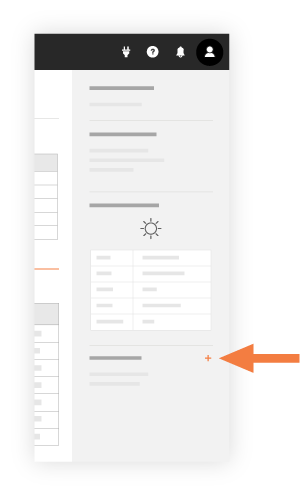
 icon.
icon. icon.
icon.