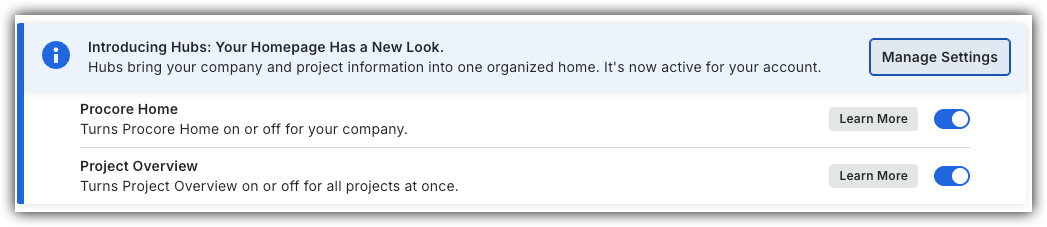
To return to the legacy Project Home, Company Administrators can navigate to the Company Portfolio / ProcoreHome tool, click Manage Settings and toggle Project OverviewOFF.
However, later this year it will be sunset and will no longer be available. If your company reverted to the legacy Project Home experience, Company Administrators can re-enable the Project Overview by switching Project Overview toggle ON.
Things to Consider
Required User Permission:
To view the Project Home page, 'Read-only' level permission or higher on the project's Home page. Note: To view tool-specific items or to gain access to linked items in the Project Overview section, you will require the minimum access permissions for the corresponding tool. For example, if you do not have access to the Inspections tool, you will not be able to view or gain access to Inspections items in the Project Overview.
Steps
Navigate to the Project Overview.
Navigate to the project's Home to be redirected to the Project Overview.
Click Menu and select Project Overview.
Locate the 'Open Items' sections.
My Open Items
Select the Item Type to filter open items by type.
Select Due Date to see items open by date range.
Click an item's title to go to the item's details in the relevant tool.
All Open Items
Optional: Click 'Refresh' to refresh your All Open Items list to include recently added items if the 'Last updated' time stamp indicated the list has not yet been refreshed.
Steps
Project Home (Legacy)
From the Home page, select your project.
Locate the 'Open Items' section.
Optional: Click Group By and select how you want to group open items.
Select My Open Items to view items that require your action. OR
Click All Open Items to view all open items. Optional: Click 'Refresh' to refresh your All Open Items list to include recently added items if the 'Last updated' time stamp indicated the list has not yet been refreshed.
Expand the section for the tool with open items you want to view.
Click View next to an individual item to view the item's details in the tool.
 OFF.
OFF.
 ON.
ON.