Import an XML Search Set
Navigate to the project's Model Manager tool.
In the left toolbar, click  Search Sets.
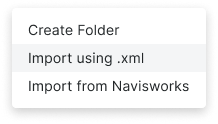
In the Search Sets panel, click the plus (+) sign at the top and choose Import using XML.
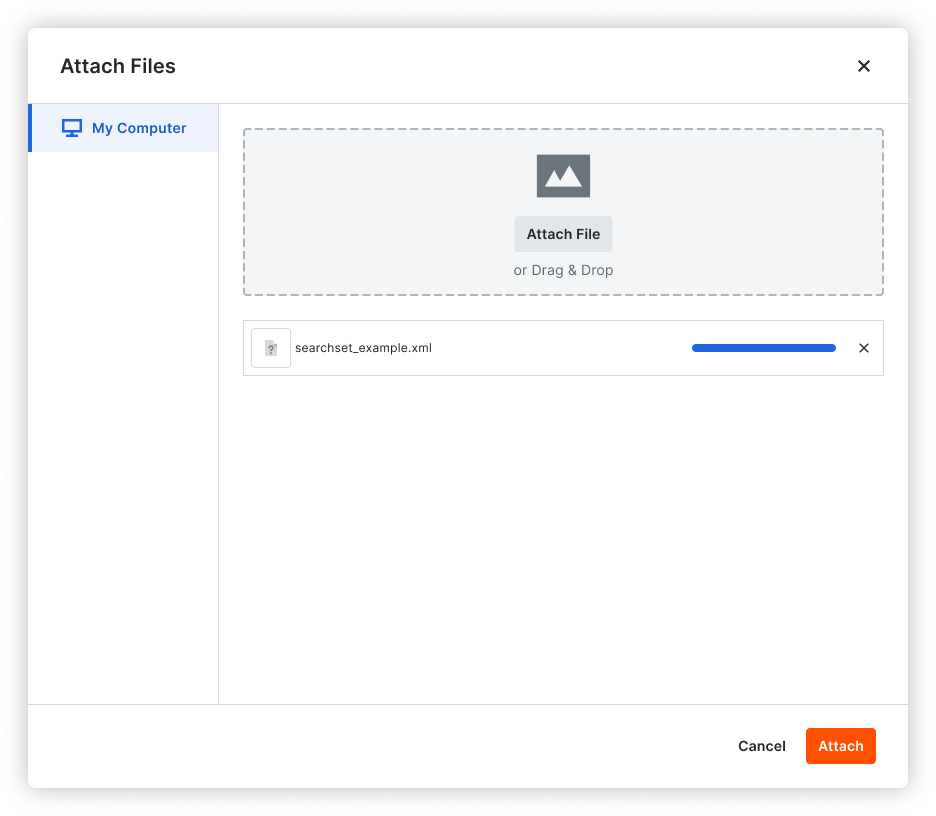
In the Attach Files window, add the file:
Click Attach. A progress indicator shows you the progress.
In the Import Search Sets panel, all of the search sets from the XML file appear.
Mark the desired check boxes to select the sets to import.
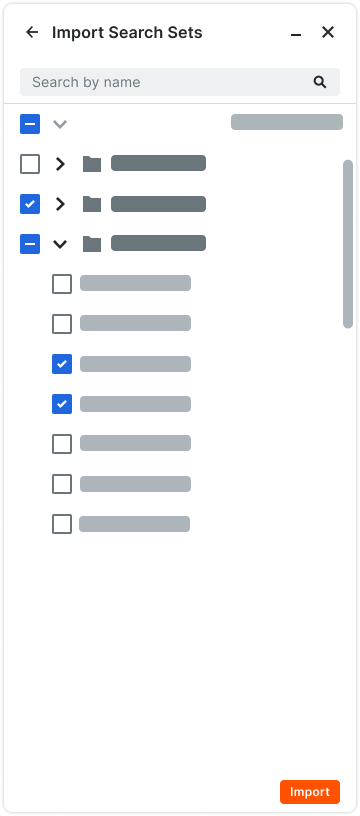
Click the Import button.
Search conditions, folder hierarchies, and set names from your XML file are preserved in the library tree.
Import NWD
Navigate to the project's Model Manager tool.
In the left toolbar, click Search Sets.
In the Search Sets panel, click Import and choose Import from Navisworks.
In the Import Search Sets window, search for the Navisworks® (NWD) file that contains the search set information. The system maintains the same folder structure from the NWD file.
Mark the check boxes for the searches to import.
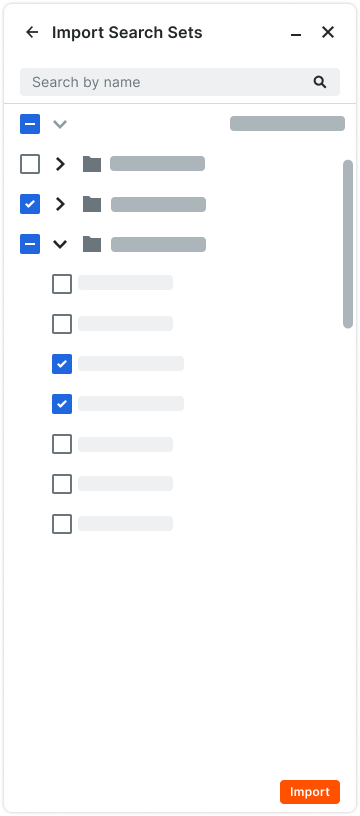
Click the Import button.
If you have previously imported search sets, Procore appends them and adds number suffixes (For example, (1), (2), and so on) if there are duplicates.