Search for and Filter Observations
Things to Consider
Additional Information:
The Observations tool saves your search and filter settings. If you leave the tool and come back later, your filters will still be applied.
If you apply filters, the search bar will only look for items that match those filters.
Steps
Search for Observations
Navigate to the project's Observations tool.
Enter a word or phrase in the search bar at the top of the page. The following fields are searched for the specified keyword terms:
Number
Type
Title
Assignee Company
Assignee Name
Description
Location
Note: If you filter for a top-tier location, it will not show you any sub tiers, but if you search for a top-tier location, it will show you sub locations.
Click Search or hit Enter on your keyboard.
This displays any items matching the search query.
Filter for Observations
Select one or more filter parameters from the drop-down menu called "Add Filter". This narrows the items in the view page by the specified filter(s).
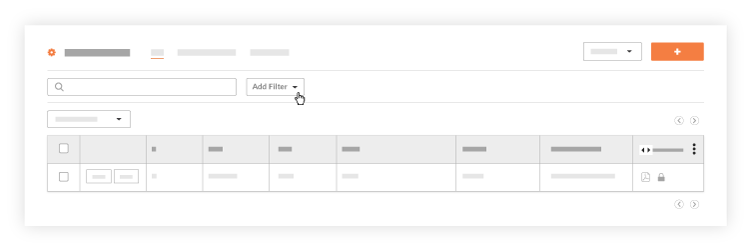
When selecting a filter, select multiple filter parameters by marking the checkbox next to each filter. (e.g. Filter by both Safety Hazard and Safety Violation types.)
You can choose to narrow the items in view by applying these filters:Assignee
Assignee's Company
Contributing Behavior
Contributing Condition
Created By
Date Created
Due Date
Hazard
Location
Note: If you filter for a top-tier location, it will not show you any sub tiers, but if you search for a top-tier location, it will show you sub locations. See How do I filter by multi-tier locations?Overdue
Origin Type
Priority
Spec Section
Trade
Type
See Also
Loading related articles...