Add Project Notes in the Portfolio (Legacy)

New Version Available

Procore Home has replaced the legacy Company Portfolio page and is enabled by default. Learn more about the difference between the legacy Company Portfolio page and the new Procore Home.

Company Administrators can switch between the new Procore Home and legacy Company Portfolio by following the below steps:

  1. Open the Procore Home or Company Portfolio tool.

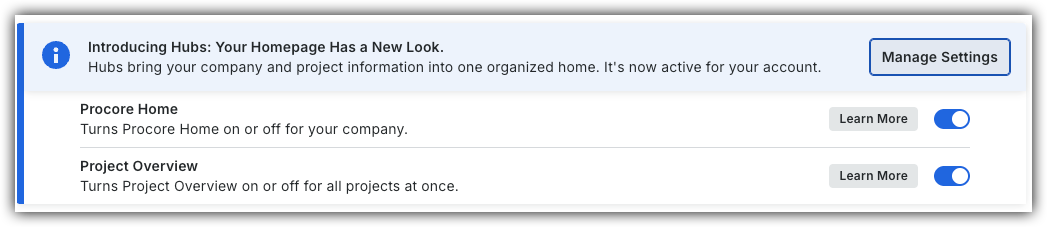
  2. Locate the Introducing Hubs banner.

  3. Select Manage Settings on the banner.

  4. Toggle Procore Home ON Icon Toggle On or OFFIcon Toggle Offto switch between the new view and the legacy view.

However, in early 2027, the Company Portfolio will be sunset and will no longer be available.

Procore Hubs announcement banner with Manage Settings button and toggles for Procore Home and Project Overview features.

Things to Consider

  • Required User Permissions on the company's Portfolio tool.

  • Additional Information:

    • Project notes are visible in the company Portfolio tool by anyone who has been added to the project.

Steps

  1. Click the Projects tab.

  2. Click the list Icon View List icon.

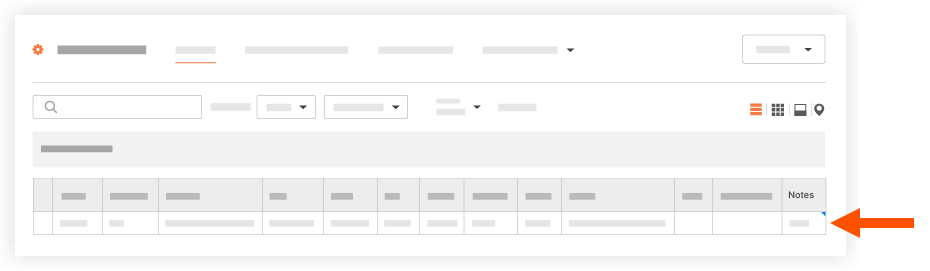
  3. Click the project's Notes field.
    Portfolio Project Notes

  4. Click outside of the field to save your changes.

See Also

Loading related articles...