Send Assignment Alerts in Resource Planning
Background
Assignments allow you to manage your resources by assigning them to projects.
You can send assignment alerts to notify the assignees and share key information about their assignment such as when they have a new assignment or when there are updates to dates, times, projects or locations.
Things to Consider
Assignment alerts can be sent to individuals or multiple assignees.
Messages are limited to 1,200 characters, not including dynamic tokens.
If custom assignment alerts are enabled for projects, they are sent instead of the default assignment alert.
Only default assignment alerts can request a response.
Depending on their settings, people can respond to alerts by SMS or email.
Assignment alerts are not automatically sent when bulk editing or bulk deleting resource assignments.
From the Assignments List, you can send alerts for individual assignments, or multiple assignments.
From the Assignments Boards or Assignments Gantt, you can send assignment alerts for all assignments for project on a certain date, or within a certain date range.
Steps
You can send resource assignment alerts from the following places in Resource Planning:
Send alerts to all assignees for a project for a certain date or within a date range:
Send alerts to individual or multiple assignees.
Send Assignment Alerts from the Assignments Boards
Navigate to the Company level Resource Planning tool.
Click Assignments and select Boards.
Click the horizontal ellipsis
 for the project and click Send Assignment Alerts.
Select who to send the alert to.
Select to send to people assigned on the current viewing day.
Select to send to people assigned within a date range.
Select the start and end dates.
Optional: Schedule delivery
Move the Schedule Delivery toggle
 ON.
ON.Enter the date to send the alert.
Select the time to send the alert.
Enter the Subject.
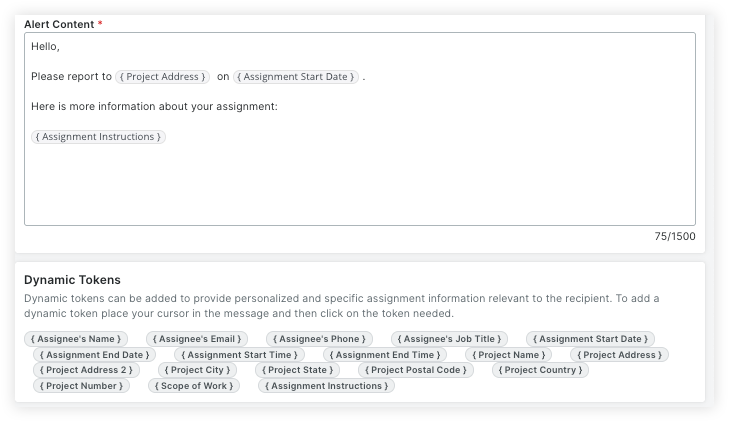
Save or send the alert.
Click Save Draft to save the alert as a draft.
Click Send to schedule or immediately send the alerts.
Send Assignment Alerts from the Assignments Gantt (Beta)
This feature is in beta and available for customers using the Resource Planning tool.
Navigate to the Company level Resource Planning tool.
Click Assignments and select Gantt (Beta).
Right click the project and select Send Assignment Alerts.
Select who to send the alert to.
Select to send to people assigned on the current viewing day.
Select to send to people assigned within a date range.
Select the start and end dates.
Optional: Schedule delivery
Move the Schedule Delivery toggle
ON.Enter the date to send the alert.
Select the time to send the alert.
Enter the Subject.
Save or send the alert.
Click Save Draft to save the alert as a draft.
Click Send to schedule or immediately send the alerts.
