Create Budget Codes in Procore's Project Financials Tools

Background

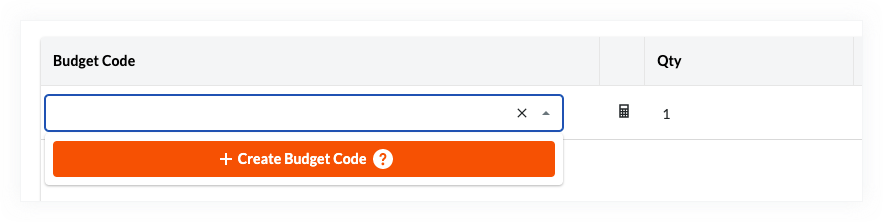
You can create budget codes on-the-fly using the 'Create Budget Code' button in Procore's Project Financials tools.

Things to Consider

  • Required User Permissions:

    • To create a budget code, you must have the ability to add or edit line items on the Procore Project Financials tool that you are using.

       Note

Prerequisites

  • Your company must be licensed for Procore's Project Financials tools.

  • The segments and segment items that you want to use to create your budget code must exist in your project's WBS. To learn more, see About Work Breakdown Structure (WBS).

Steps

In Beta

Company Administrators can enable the UOM & WBS: Assign Units of Measure to Budget Codes and Lock on Line Items beta in Procore Explore.

  1. Navigate to any one (1) of the following Project level financial tools:

    • Budget

    • Budget Changes

    • Change Events

    • Change Orders

    • Client Contracts

    • Commitments

    • Direct Costs

    • Funding

    • Prime Contracts

       Note

      You can create a budget code when adding or editing a line item in any project level financial tool. For example, you can use the steps below to create a new budget code when creating a new line item in the Budget tool.

  2. In the Budget tab, click + Create and select Budget Line Item from the drop-down list.

  3. In the Create Budget Line Items window, click Add Line.

  4. Click the Budget Code cell and then click + Create (or click + next to the Budget Code cell).
    Wbs Create Budget Code Button

  5. In the Create Budget Code and Assign UOM window, configure the budget code details under the WBS Code Segment and Description section:

    1. Cost Code. Select a cost code from the drop-down list.

    2. Cost Type. Select a cost type from the drop-down list.

       Note

      The cost codes and cost types that you can select on your Procore project are unique to your project's specific WBS. Contact your company's Procore Administrator if you require assistance with creating a budget code for your environment.

    3. Description. Select Concatenated to combine cost code and cost type descriptions automatically, or select Custom to enter a custom description. See Why create a custom budget code description for Procore's Project Financials tools?

  6. Click Create.

See Also

Loading related articles...