Our chat and phone support are currently experiencing longer wait times than usual. Thank you for your patience as our team works to assist everyone as quickly as possible.
Welcome to our new support center!
Here, you will find answers to all your questions about Procore products and features—more easily than ever before. This is now the only support site for Procore. The previous site (support.procore.com) is now obsolete and will no longer be updated.
Company Administrators can switch between the new Procore Home and legacy Company Portfolio by following the below steps:
Open the Procore Home or Company Portfolio tool.
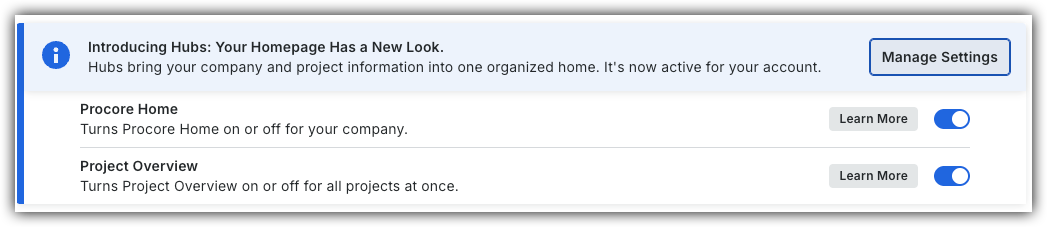
Locate the Introducing Hubs banner.
Select Manage Settings on the banner.
Toggle Procore HomeON or OFFto switch between the new view and the legacy view.
However, in early 2027, the Company Portfolio will be sunset and will no longer be available.
Background
Search Procore Home for projects to locate specific jobsites across your company portfolio quickly. Entering keywords into the search bar filters projects by location, name, or identification number without requiring manual scrolling. Finding active, inactive, or template projects immediately streamlines daily navigation across your organization.
 or OFF
 to switch between the new view and the legacy view.
